How to Transcribe a YouTube Video to Text on iPhone
To transcribe a YouTube video on iPhone, tap Share in the YouTube app and choose AnyScribe, or paste the video link into the app. AnyScribe creates a timestamped transcript with an AI summary and saves it on your device. Your first 30 minutes are free, and there is no subscription — you buy non-expiring credits only when you need more.
Step by step
Exact steps on your iPhone
- 1
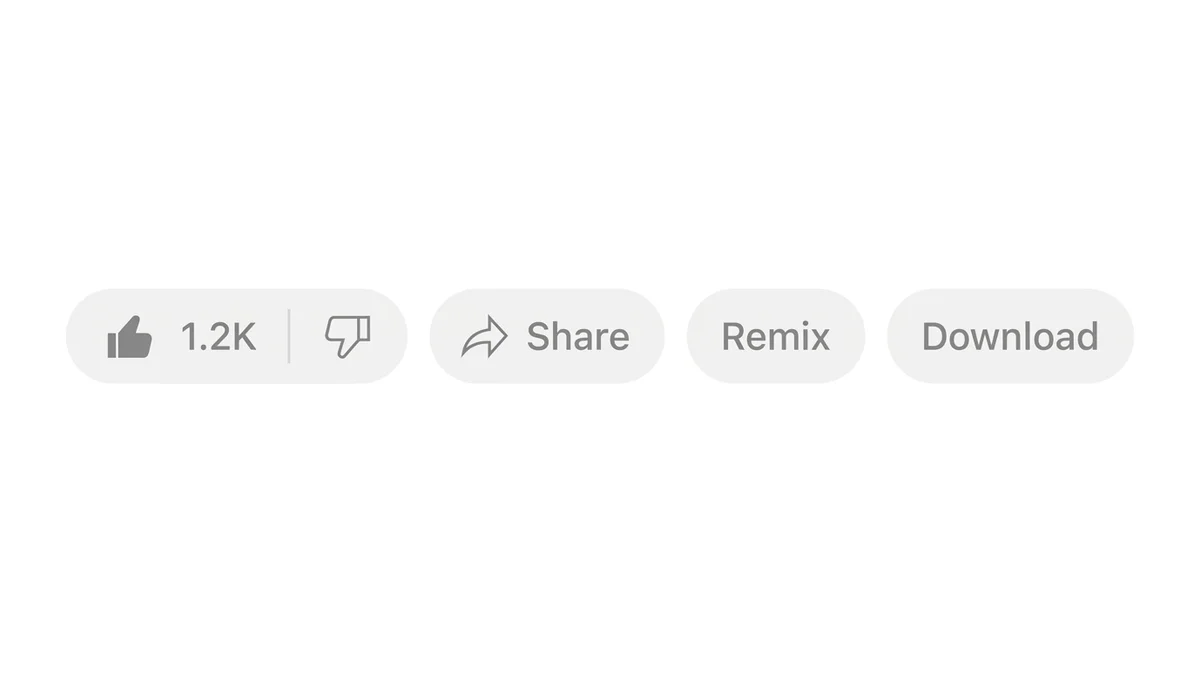
Open the video in the YouTube app
Find the video you want to transcribe and tap the Share button below the player.
- 2
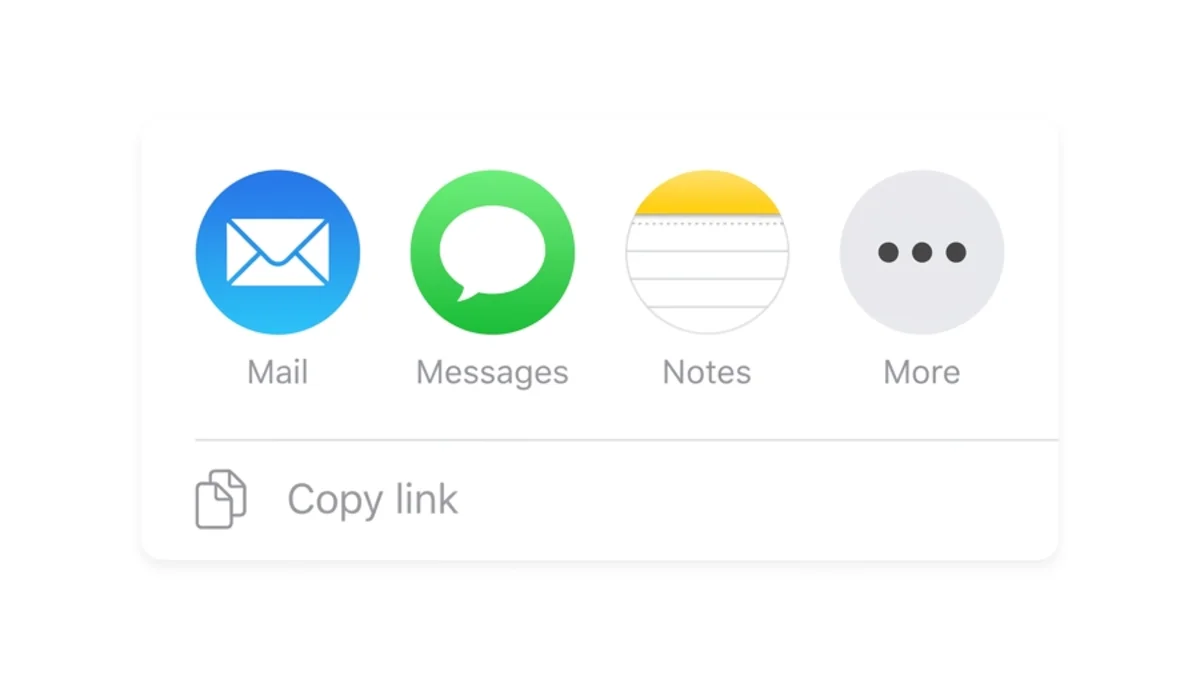
Tap More in YouTube's share panel
YouTube shows its own share options first. Tap More to open the iOS share sheet.
- 3
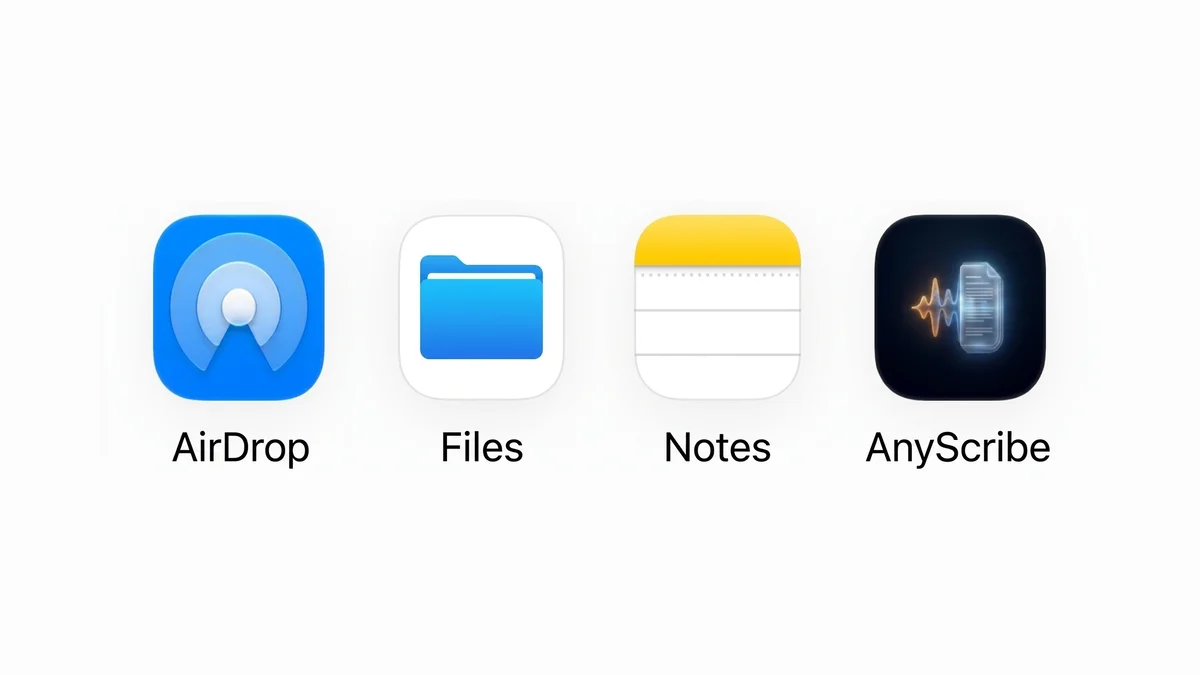
Choose AnyScribe in the share sheet
Tap AnyScribe in the iOS share sheet. AnyScribe fetches the audio and transcribes it automatically — most videos are ready in moments.
- 4
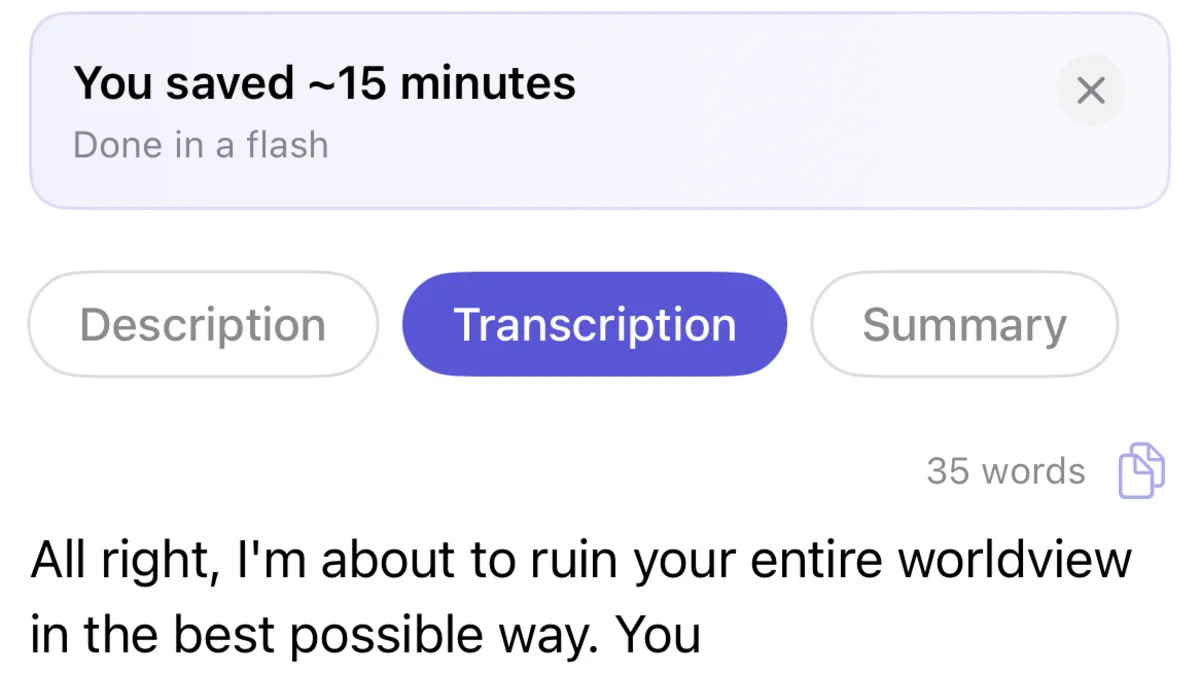
Read, search, and share the result
You get a timestamped transcript plus an AI summary. Copy the text, search inside it, or share it as a clean web page.
Who this workflow is for
Students turning educational videos and explainers into study notes
Researchers and journalists pulling exact quotes from interviews and talks
Creators repurposing video content into posts, scripts, and newsletters
Anyone who prefers reading and searching to watching a 40-minute video
No share sheet handy? Paste the link instead
If you are browsing YouTube on desktop or in Safari, copy the video URL, open AnyScribe, and paste it into the input field on the home screen. The result is identical: a timestamped transcript with an AI summary.
Timestamps make it easy to jump back to the exact moment in the video when you need to verify a quote or re-watch a section.
What works
Public YouTube video links, including youtu.be short links
YouTube Shorts links
Any audio or video file imported from Files or Photos
Links from Instagram, TikTok, Twitter/X, Facebook, Twitch, Vimeo, SoundCloud, and more
Good to know
The video must be public — private, unlisted-with-login, or members-only videos cannot be fetched
After the free 30 minutes, transcription uses credits based on audio length
AnyScribe is an iOS and iPadOS app — you can try transcribing a link for free on anyscribe.app, but there is no Android app
Accuracy depends on audio quality; heavy background music or crosstalk reduces it
Simple, Honest Pricing
No subscription. No account. Buy credits when you need them — they never expire.
Free
$0
30 minutes included with the app. No strings attached.
1 Hour
$1.99
Perfect for occasional use. Credits never expire.
4 Hours
Best value$5.99
Best value for regular transcription needs.
12 Hours
$14.99
For power users and professionals. Credits never expire.
FAQ
Common questions
- Is transcribing YouTube videos free?
- The app is free to download and includes 30 minutes of transcription. After that you buy credit packs from $1.99 per hour. Credits never expire and there is no subscription.
- Does it work with YouTube Shorts?
- Yes. Shorts links work exactly like regular video links — share from the YouTube app or paste the URL.
- What languages can it transcribe?
- Over 50 languages with automatic language detection. Mixed-language videos are detected and transcribed per language.
- Do I need an account?
- No. AnyScribe works without an account, and transcripts are stored on your device and in your iCloud.
- How long does a transcript take?
- Short videos are usually ready in well under a minute. Longer videos take longer because the full audio is processed — a rough guide is a fraction of the video's own length.
Start Transcribing for Free
30 minutes of free transcription. No account needed. No subscription ever.
Download for iOSLast verified on August 3, 2026 against the current version of AnyScribe for iOS.